
AffirmedRX

AffirmedRX

App Guide

Everything you need to know about using the AffirmedRx Pulse Member App

Quick Start Guide

1. Download

Download your AffirmedRx Pulse Member App

2. Register

Register within your AffirmedRx Pulse Member App

3. Search

Search for the medication that your doctor has prescribed or choose a drug from your prescription history

4. Explore

Explore drug alternatives with your doctor on the AffirmedRx Pulse Member App

5. Pharmacies

Search pharmacies and choose where you would like to fill your prescriptions

6. Stay in Touch

Let your doctor know which pharmacy you’ve chosen and they’ll write or send your prescription, just as they normally do

7. Pickup

Go to the pharmacy and show your pharmacist your AffirmedRx pharmacy benefit card
Step 1

Download your AffirmedRx Pulse Member App

Click here to download

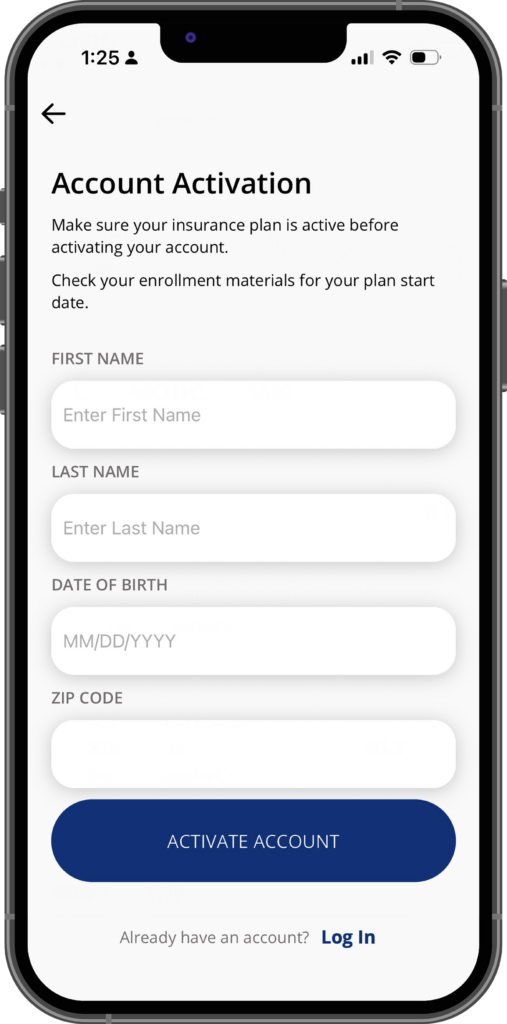
Step 2

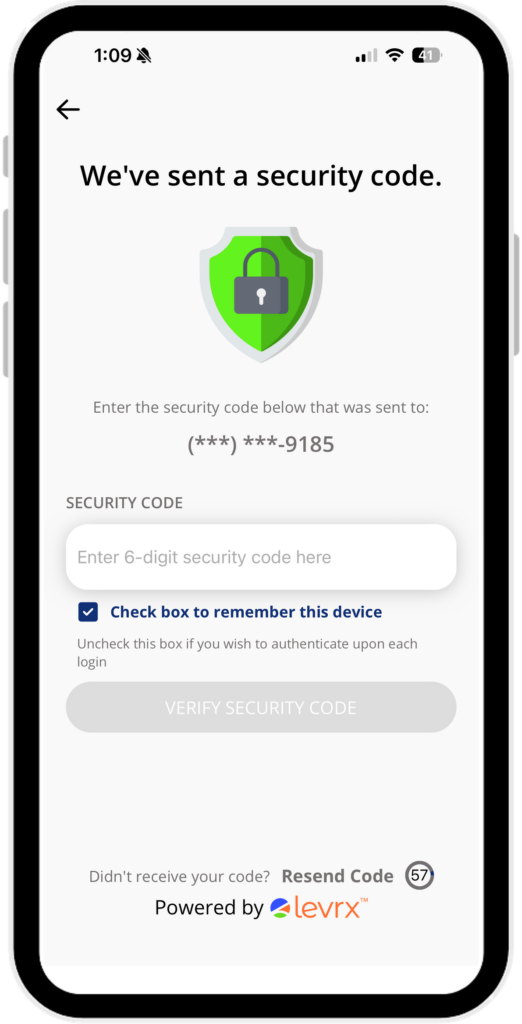
Register within your AffirmedRx Pulse Member App

For security purposes, our app has 2-factor authentication. When you log in, a code will be sent via text or email to the number/email on file. You will need to enter this into the area where it asks for a verification code.

Step 3

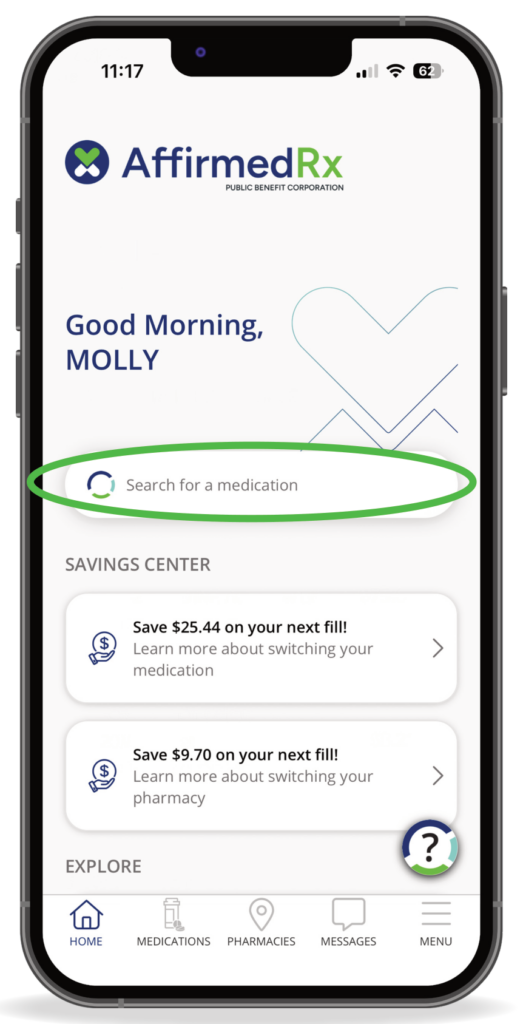
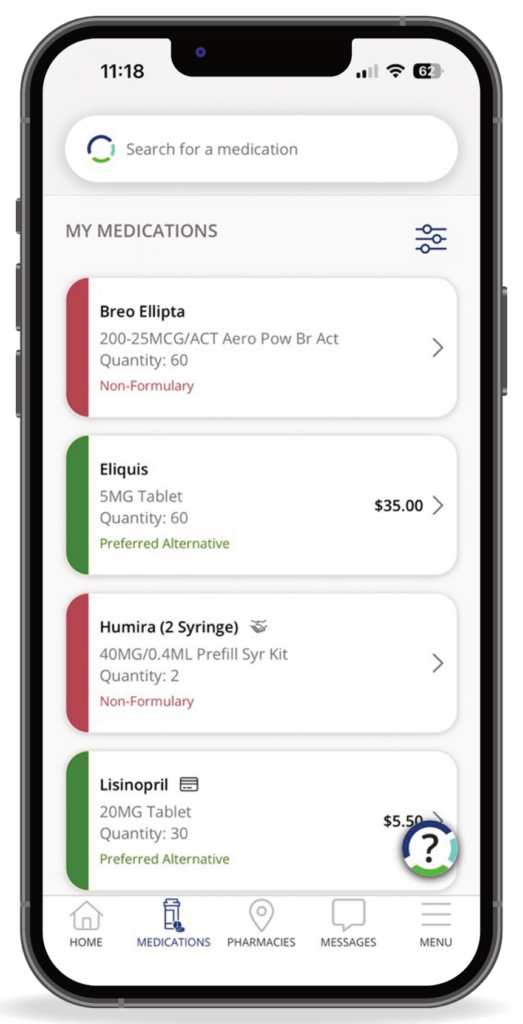
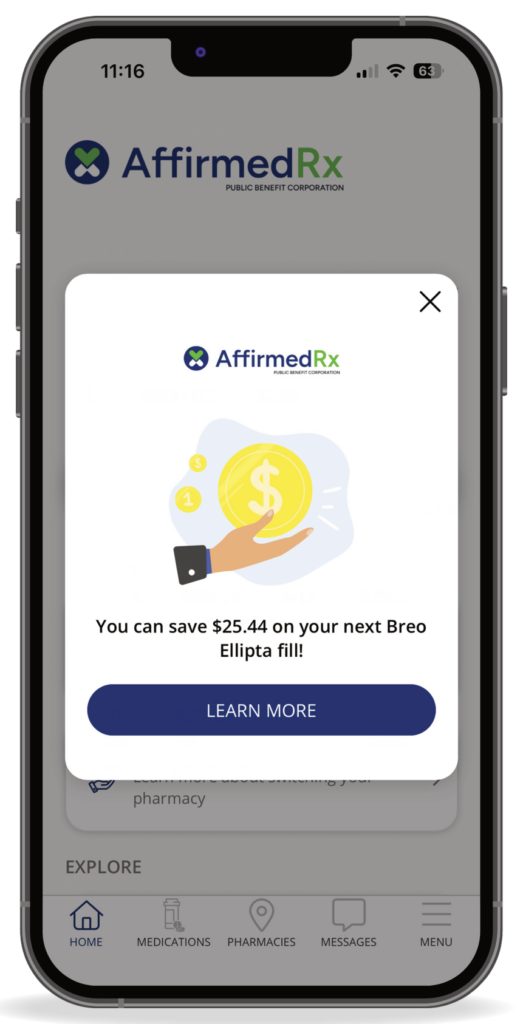
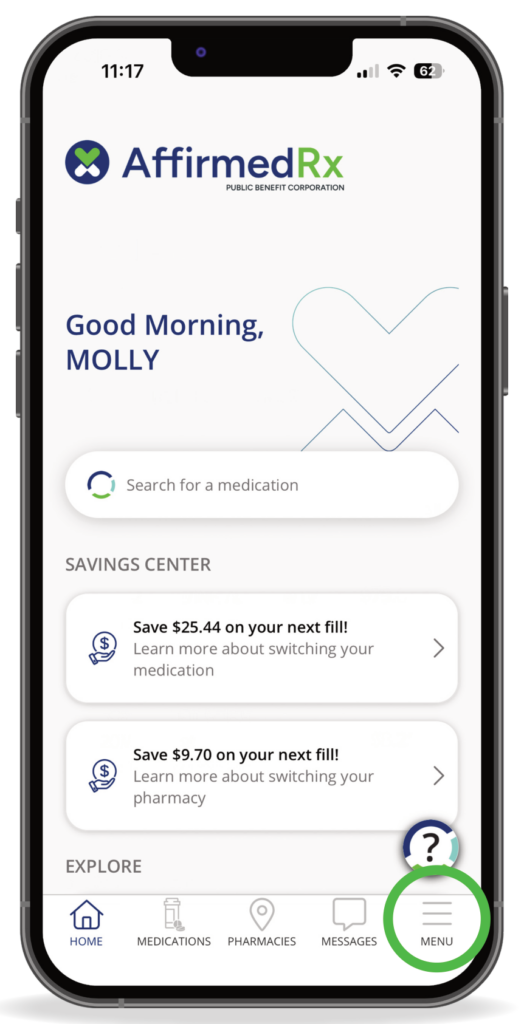
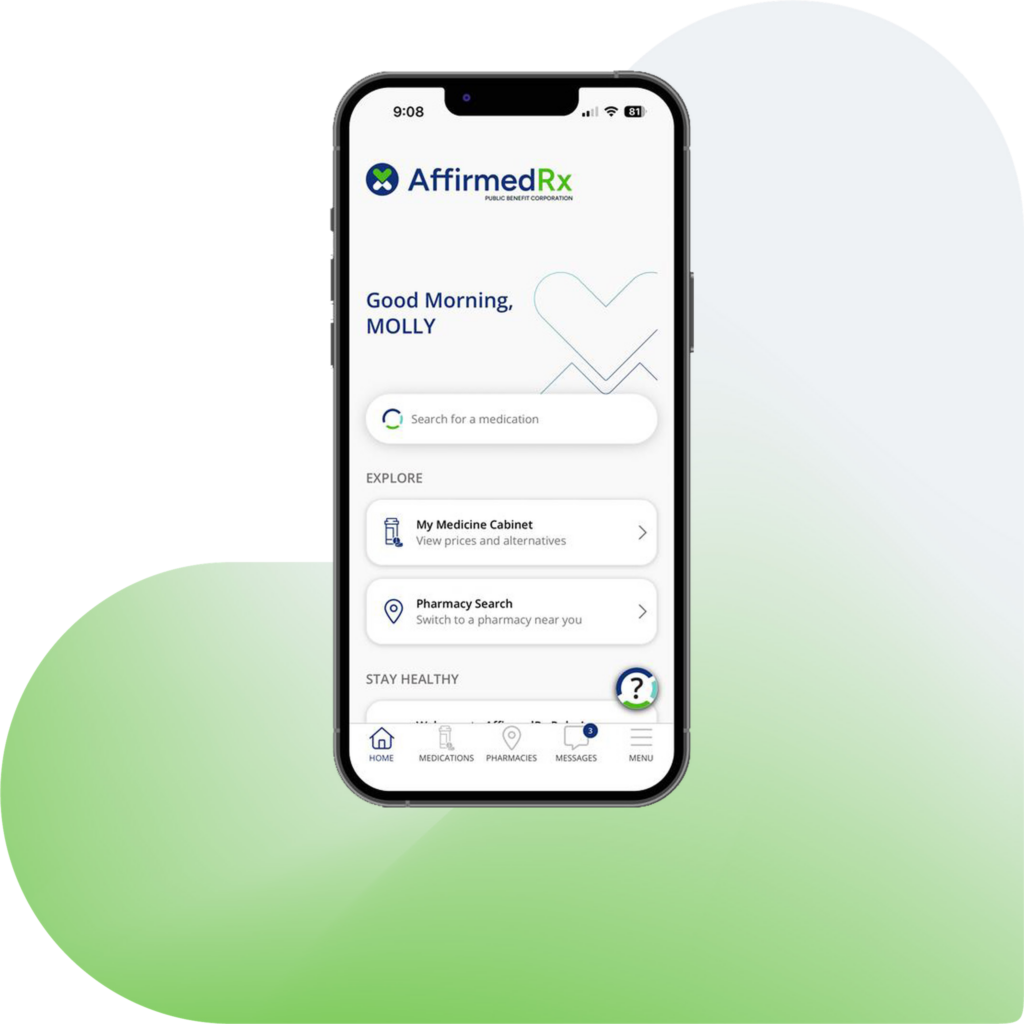
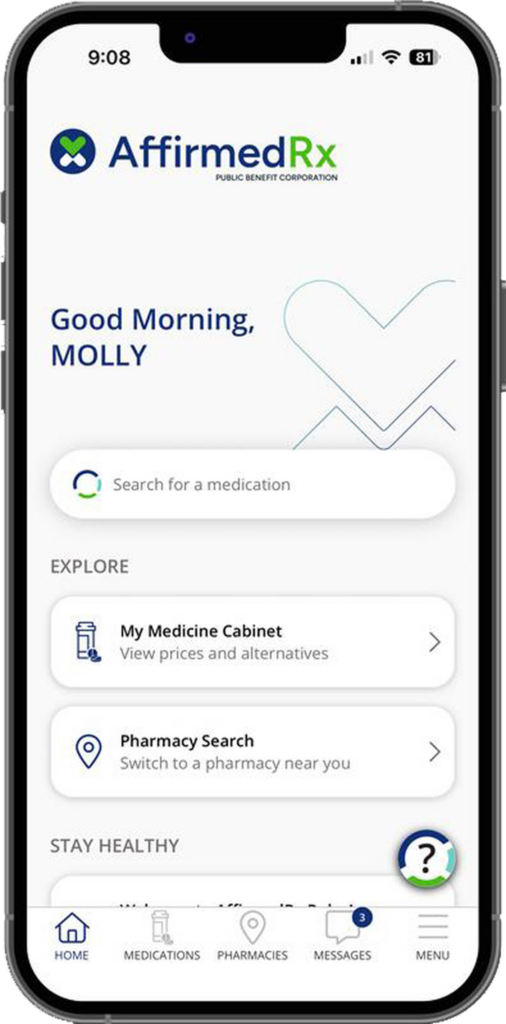
Explore! Search for the medication that your doctor has prescribed or choose a drug from your prescription history or view a Savings Center Opportunity!
Drug search will show you the price of your medication
Savings Center Opp, app will suggest best lower cost options based on your plan

Additional Information

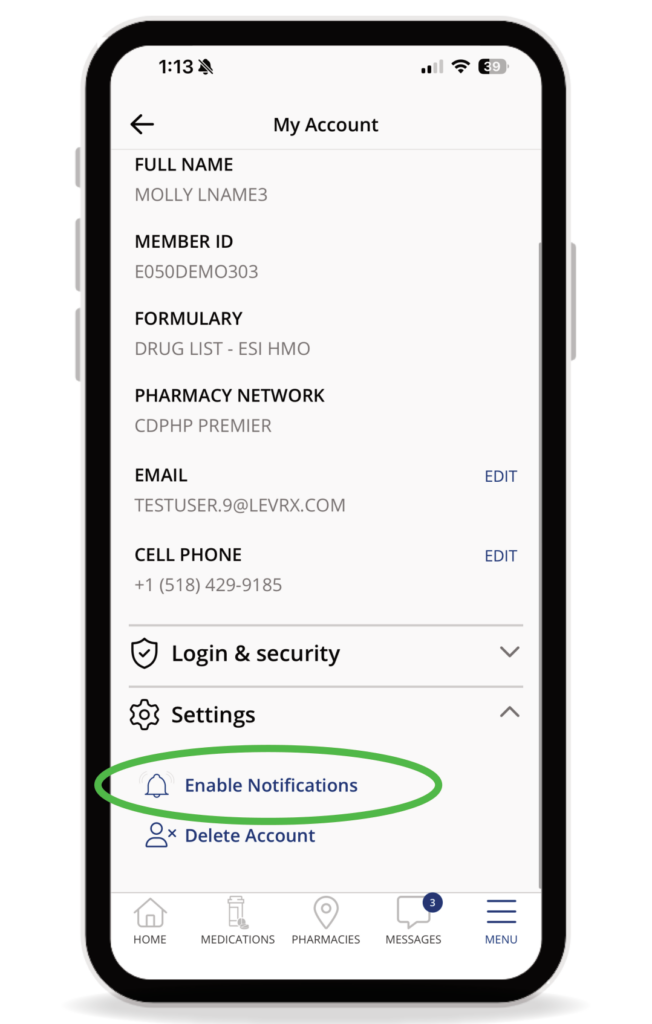
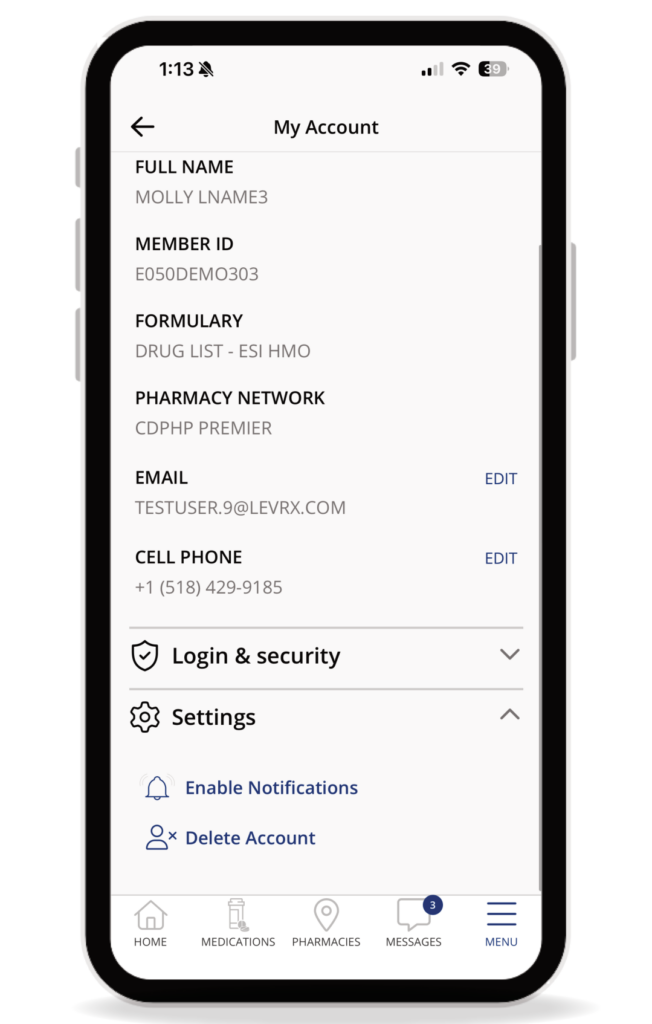
How to Enable Push Notifications

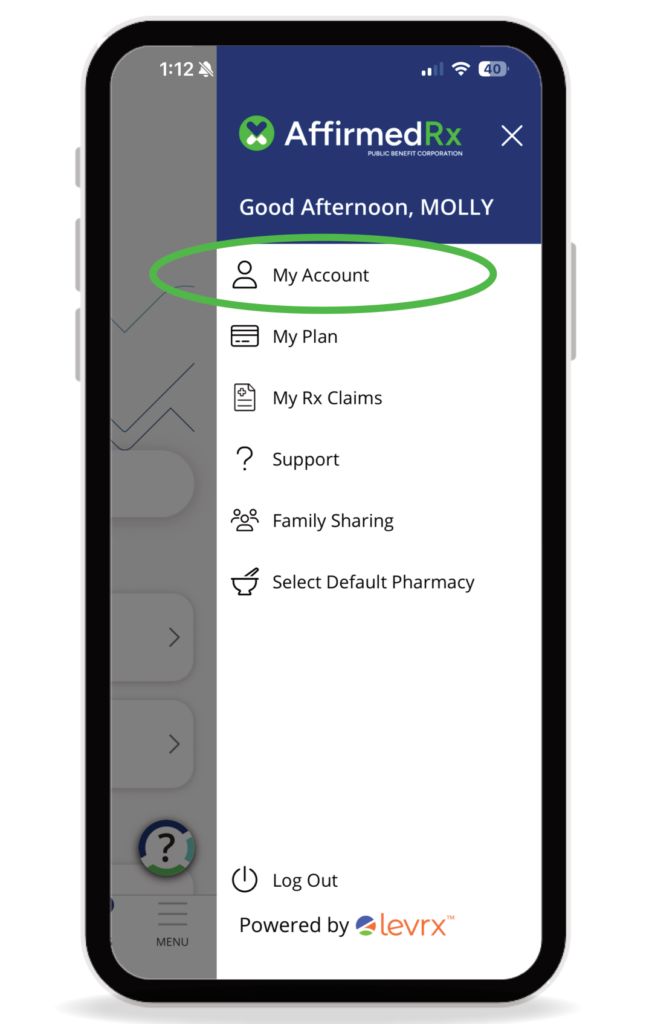
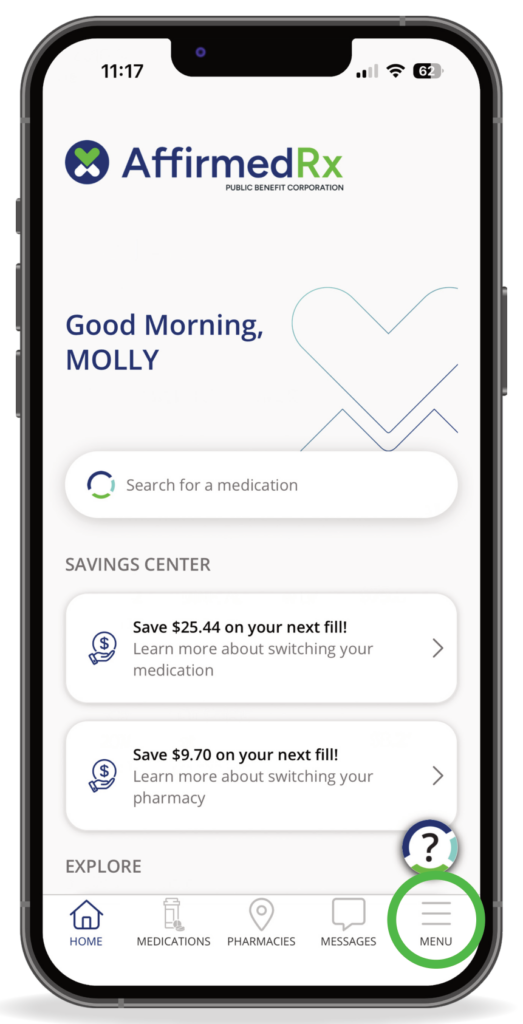
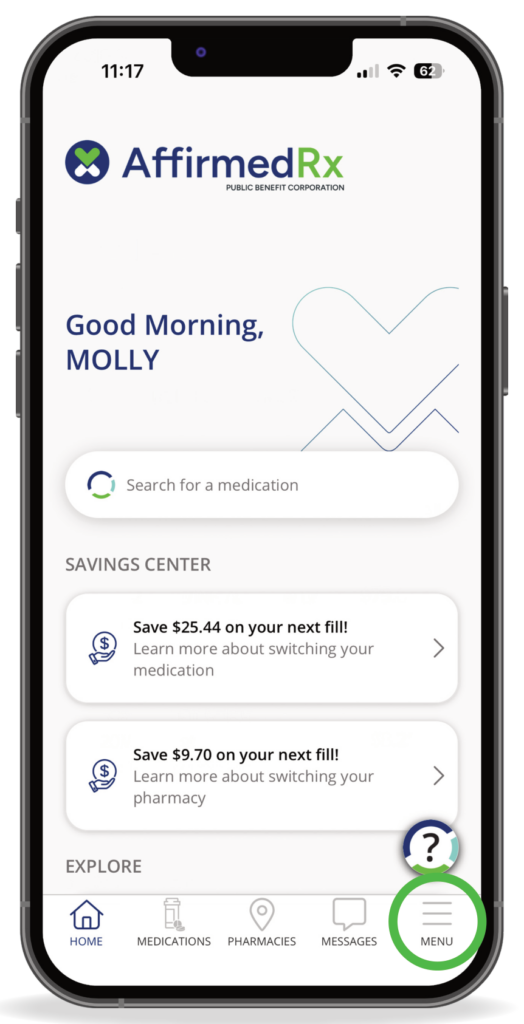
Select the Menu Icon

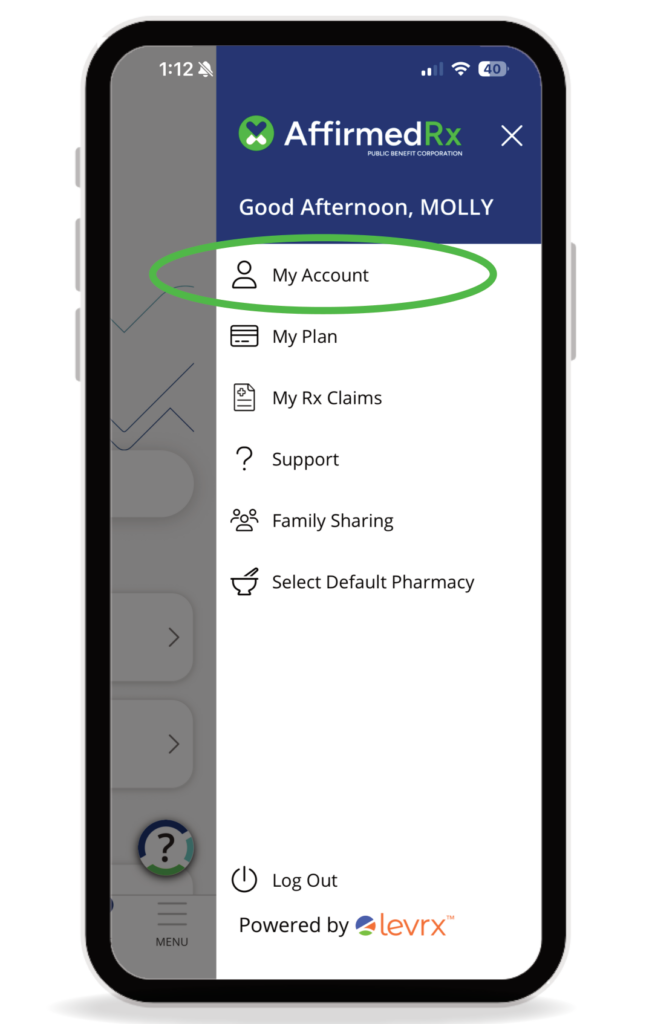
Select Account
Tap Enable Notifications to turn on push Notifications

Additional Information

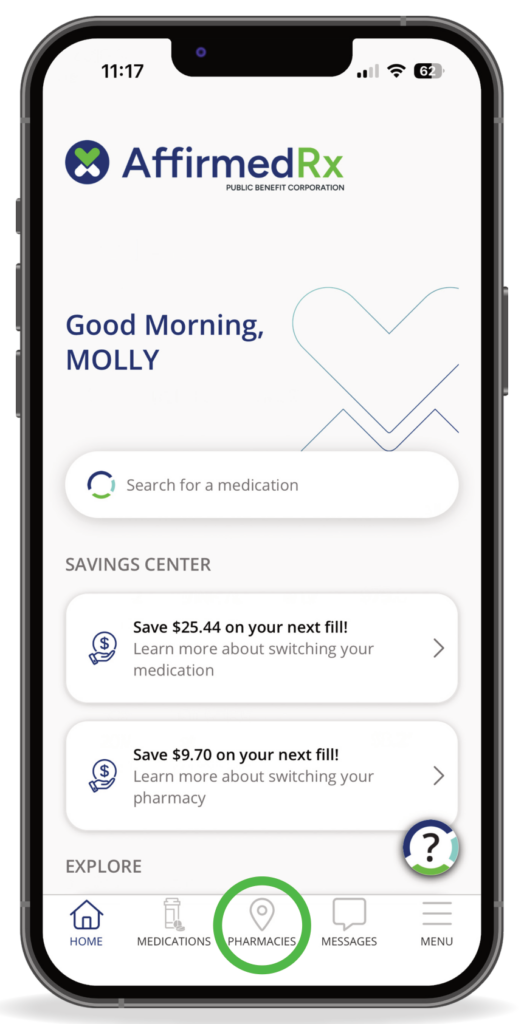
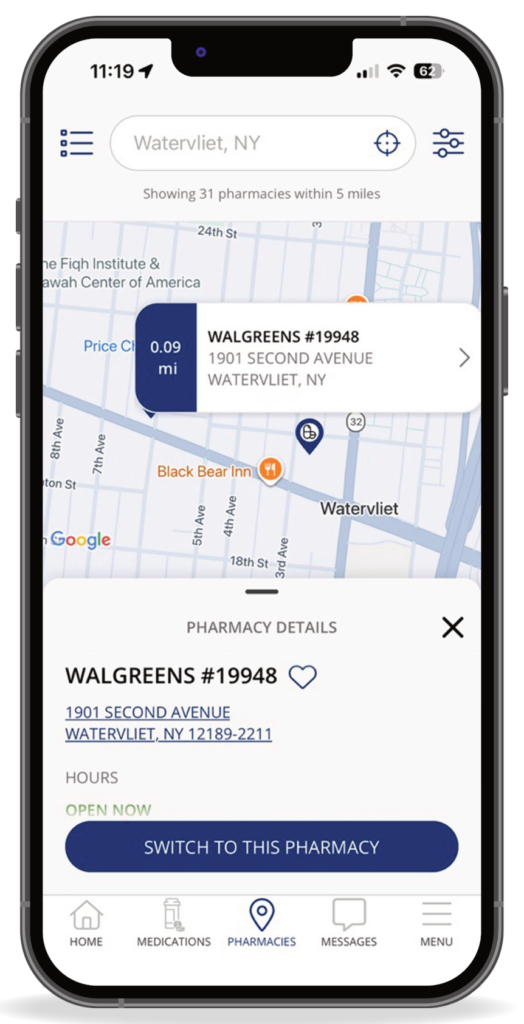
Searching for a pharmacy and choosing where you would like to fill your prescriptions
Select Pharmacy tab on the Member App screen
Search your area for pharmacies

Additional Information

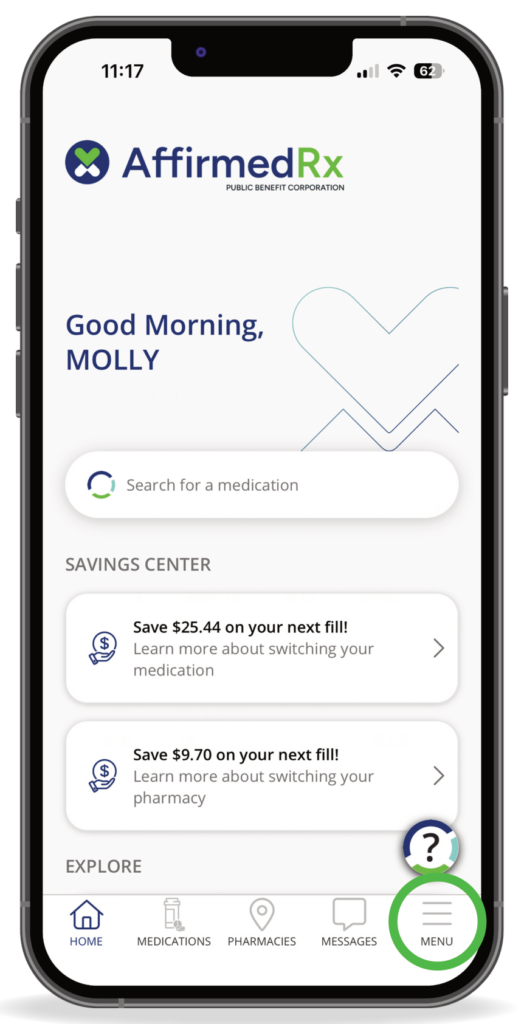
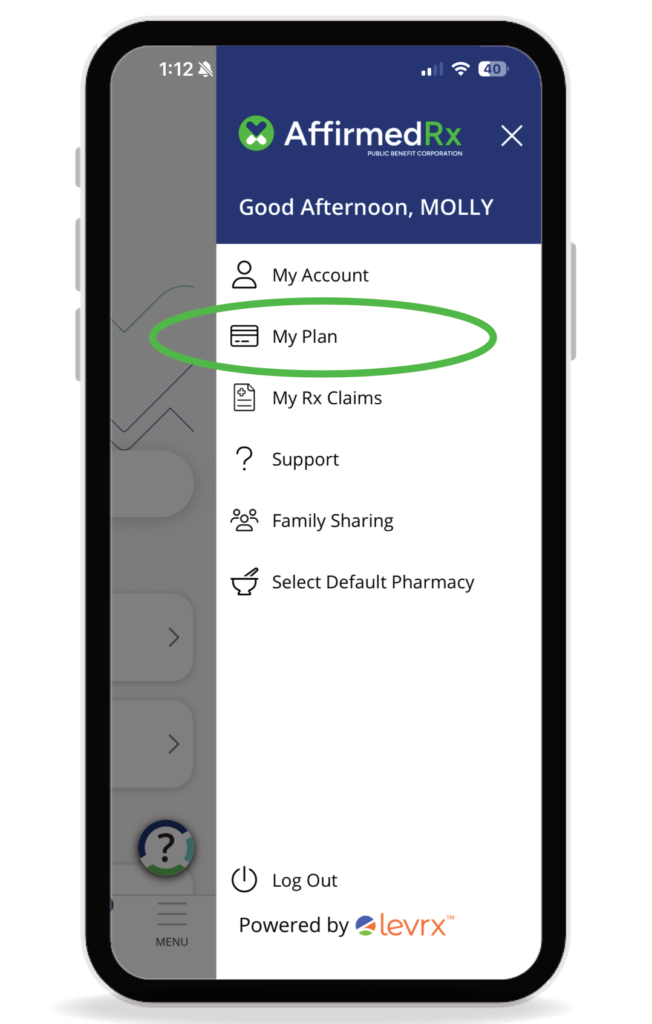
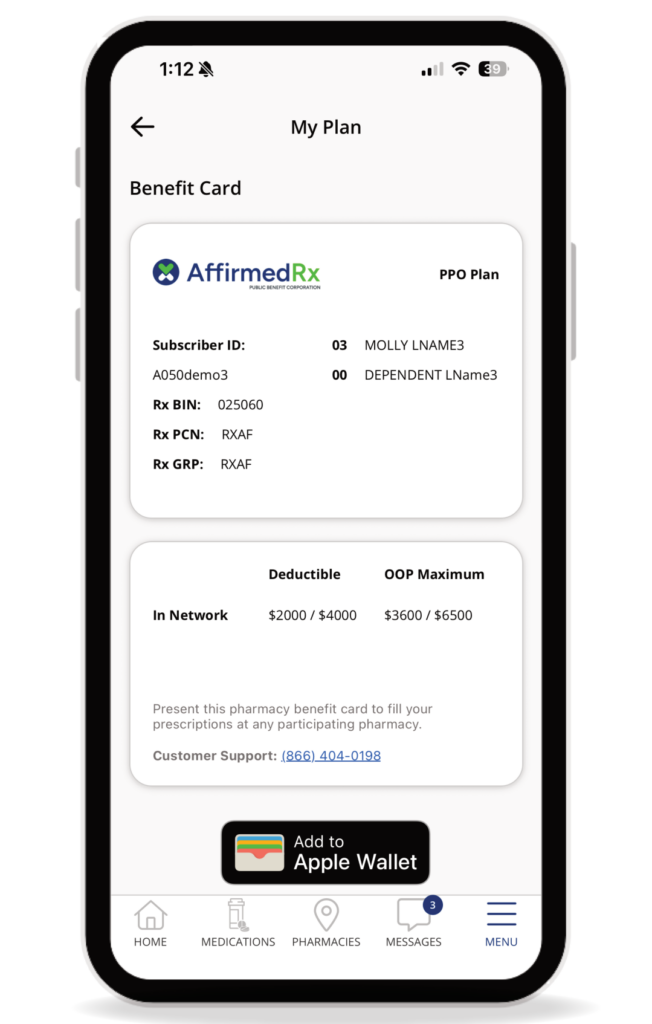
Accessing your plan benefit information

Click on Menu

Click on My Plan

View your Benefit Card

Additional Information

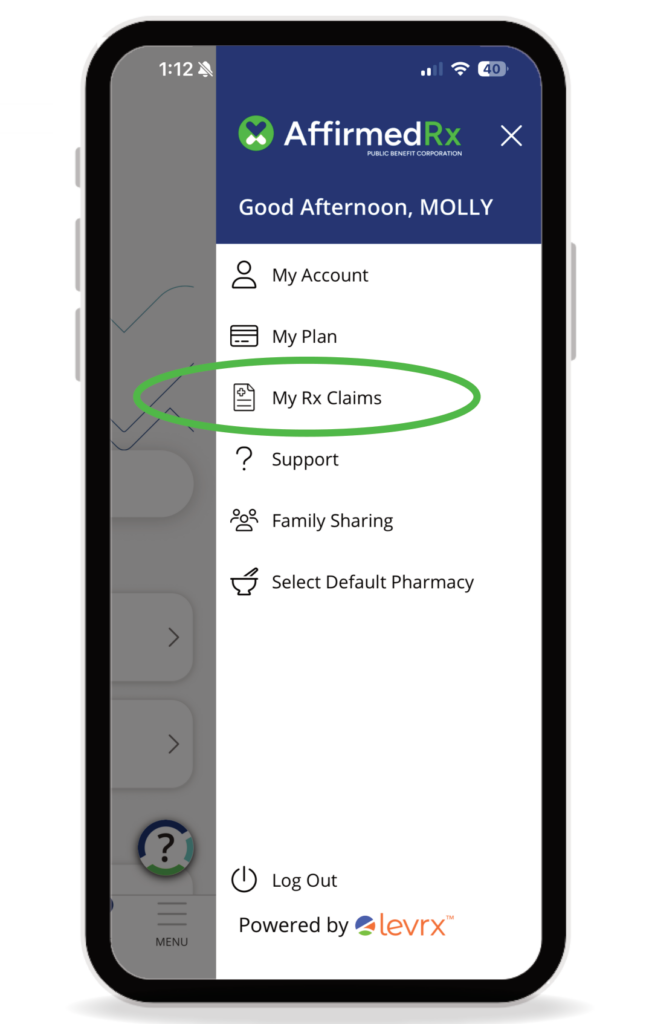
Viewing your previous pharmacy claims

Accessing your plan benefit information

View your Claims History

Additional Information

Managing your account and settings

Additional Information

Updating your personal profile and account information

Additional Information

Registering a Dependent account

  • Dependents under age 18 cannot register for a separate account
  • Dependents age 18 and older can register for a separate account, but cannot see other cardholder/family member claims. They will only see only their own claim information.
  • The cardholder can see dependent claims if their dependent is under age 18; however, they cannot see those claims that fall into the medical consent lists (for example: HIV medications, birth control, other mandated/regulated limitations and protected info, though the dollar amounts will be visible in any accumulator calculations for the cardholder)
  • When a dependent over 18 years old registers, the registration is the same process as the original cardholder registration process, using their own name.

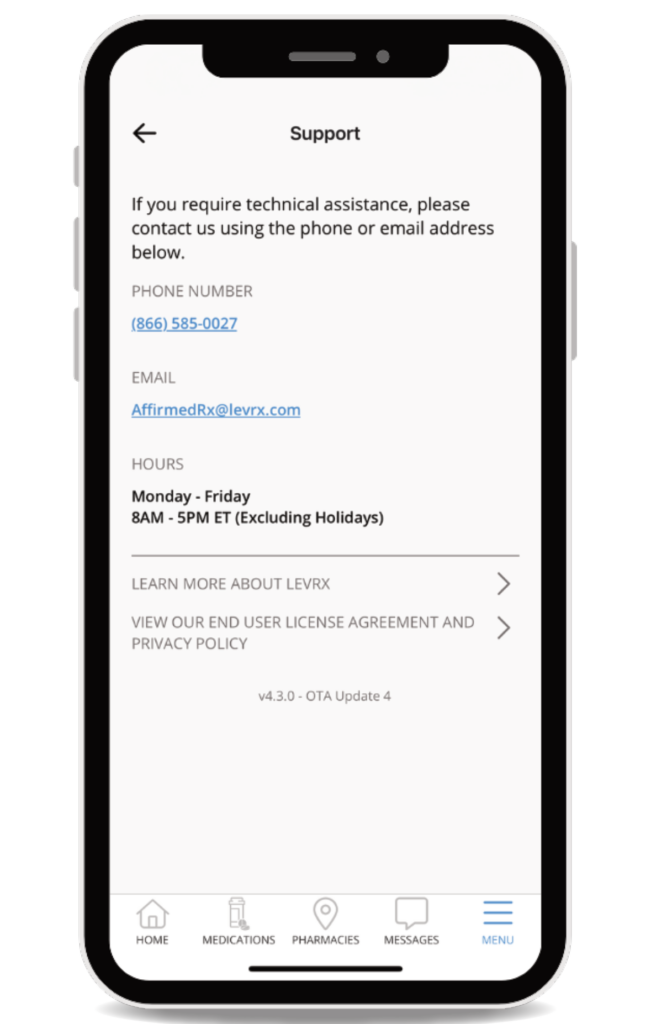
We’re here to help

If you need assistance at any point, please contact us.

For additional assistance, please call (866) 585-0027